
AI Video Effects from Photos: Hug, Clones and More
Make AI video effects in Music With Me. Match your photos to Hug, Clones or other presets, keep one clear action and review the credit quote.

AI video effects turn a still reference into a moving scene. In Music With Me, Effects Video lets you choose a creative preset, add separate left and right photos and review the available video settings before generating. Start with one action you want the viewer to understand: a hug, a dance, a camera pullback or a group of clones.
This guide explains how to match the effect to your reference photos and write a focused brief. It also separates a musical performance from a visual effect, so you can choose the right generator mode for your idea.
Decide what changes in the scene
Before selecting an effect, answer one question: what should happen to the people or the camera? Hug changes the relationship between two people. Clones adds copies around a subject. Earth Zoom Out changes the camera's distance and the scale of the setting. Slow Dance asks for coordinated body movement.
These are different visual jobs. Combining all of them in one short clip makes the intended action harder to describe and evaluate. Pick the main action first. You can make a separate clip for another idea instead of asking one generation to carry every effect.
If your main goal is a personalized rap with music and vocals, choose Rap Video. Effects Video is organized around the visual preset; audio still depends on the selected model and available settings.
Match the photo to the motion
The amount of visible body should fit the action. A hug needs visible shoulders, torsos and arms. Slow Dance benefits from full-body photos with room around the arms and feet. Earth Zoom Out guidance favors a clearly visible person and enough surrounding space to begin the wider view.
Keep the face readable even in a full-body shot. A person photographed far across a crowded room is a weaker reference than a clear standing portrait. Avoid overlapping people, hands hiding faces and heavy filters that replace important facial detail.
Effects Video uses two separate image slots: Left photo and Right photo. Put one clearly visible person in each image and check both before continuing. Do not assume the Rap Video option for a photo together applies to this mode. Use the framing guidance shown for the selected preset.
Authorized Hug showcase: the visible arms explain the contact while both faces remain readable. This example demonstrates the intended action, not a result guaranteed for your photos.
Read the Hug example before writing
The image above works as a clear visual idea because the people are close enough to interact and the surrounding scene does not compete with them. Their arms communicate the hug. Their faces communicate the mood. There is no need for a dramatic camera move to explain what is happening.
Use that observation in your brief. Describe a gentle hug, natural contact and calm movement. If you also request a fast spin or an extreme facial transformation, you add instructions that can compete with the simple action you started from.
A suggested brief is:
Bring the two people together for a gentle hug in warm light. Keep both faces recognizable, their arms anatomically coherent and the camera steady. Use small, natural movements and an affectionate mood.
This is a writing example rather than a tested output. A prompt guides generation; it does not guarantee exact contact, anatomy or facial consistency.
Use Clones for a different kind of movement
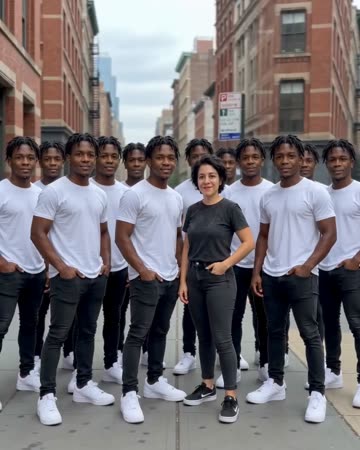
Authorized Clones showcase: repeated performers on a city street make duplication the main visual action.
Clones is a useful contrast with Hug because the goal is repetition rather than contact. Keep the source people distinct and describe how the copies should appear. A steady camera makes it easier to judge whether the duplicated faces and outfits remain coherent.
Try: “Copies of the person step out one at a time and form a group on a quiet street. Keep the recognizable face and outfit consistent. Use a steady camera and simple movement.” Avoid demanding a precise number of perfectly identical copies unless your selected model provides that control.
For Earth Zoom Out, focus on a continuous pullback and the final distant view. Do not add a camera orbit at the same time. For Slow Dance, describe relaxed coordinated steps and keep the environment simple so the body movement remains the main event.
Choose the preset and inspect the quote
Open AI Video Effects, select a preset and read the creative prompt. Change the setting or mood when it helps the idea, while retaining one main action. Selecting a different effect does not submit a generation or charge credits.
Add your left and right images, review the supported model, duration, format and resolution, then check the credit quote. If the clip needs audio, inspect the actual audio option instead of assuming the effect includes a soundtrack. Sign in when you are ready to upload and submit.
Follow the task in My Videos. Processing time varies by settings and queue. A successful result can be watched and downloaded there; the example image or clip is inspiration rather than a promise of identical output.
Judge the effect over the whole clip
Watch from beginning to end. Check the main action first: does the hug happen clearly, do clones appear coherently or does the camera pull back smoothly? Then check the faces, hands, body outlines and background.
When an action is unclear, simplify it before adding more description. When faces drift, use stronger references and less movement. When the camera behaves unpredictably, remove conflicting camera directions. Changing one major instruction at a time makes the next attempt easier to assess.
For sharing, choose a supported format that fits your destination, download the result and watch the downloaded file as well. An explanatory caption can help viewers understand that the scene is AI-generated. Keep the focus on a playful moment the people pictured are comfortable sharing.
Start with Effects Video for a clear visual action, or return to the Music With Me studio when you want your duo to take the mic instead.