
AI Rap Duo Video: Make a Performance from Two Photos
Make an AI rap duo video in Music With Me. Choose clear portraits, pick a stage, write a personal brief and review audio, settings and credits.
You can make an AI rap duo video without filming both people together. Start with a clear portrait of each person, choose a stage in Music With Me and write a short message about the occasion. The useful work happens before generation: picking readable faces, keeping the scene simple and deciding what your audience should recognize.
This guide follows the two-photo workflow. If you already have a clear picture together, Rap Video also offers One photo together. You do not need to force that picture into two separate crops just to get started.
Plan one moment for your AI rap duo video
Choose the pairing before choosing the backdrop. Two friends celebrating a reunion suggest a different mood from two siblings sending a birthday message. Write down the people, the occasion and one detail they share. That gives the video a purpose even before you describe the music.
A useful brief might be: “Jordan and Casey celebrate finishing their first half marathon. Keep it cheerful and include their habit of getting pancakes afterward.” It is specific without demanding a full story in a short clip. Treat the message as creative direction; generation may rephrase it rather than repeat every word.
Prepare photos the model can read
For the Hotel Lobby or Studio Booth setting, choose photos that show the whole head, shoulders and chest. Keep the eyes and mouth visible. A face hidden by sunglasses, a hand or a microphone gives the model less information to work with.
The two portraits can come from different places. Similar framing and even lighting make them easier to compare, but matching outfits are unnecessary. Avoid choosing one tiny face from a group shot and one close-up selfie. Pick a clearer individual portrait when you have one.
Use photographs you are authorized to upload. Check the file in its normal view before selecting it; a small thumbnail can hide blur or an awkward crop. The generator's photo guidance helps you identify unsuitable framing, but it cannot promise perfect identity preservation.
Add your people and choose a stage
Open the Music With Me generator and select Rap Video. Add each portrait to its intended slot. Inspect both images and replace the wrong person or a blurry file before continuing. Choosing local files and exploring the form does not submit a video generation.
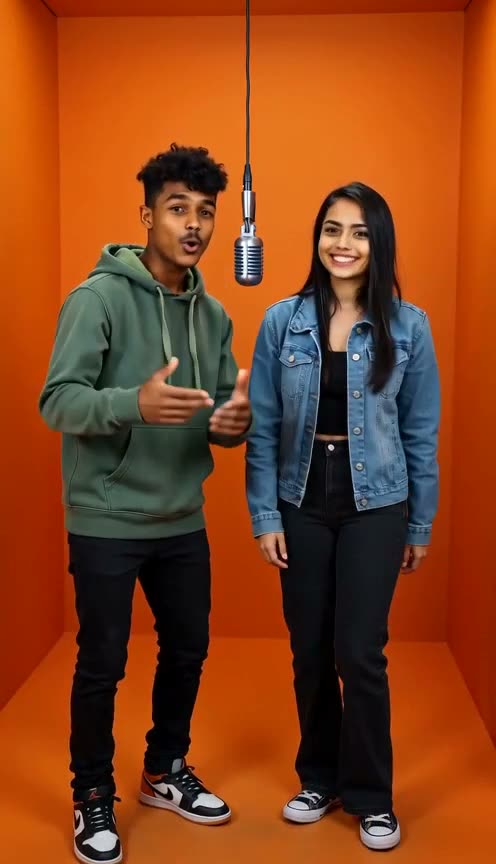
Pick Hotel Lobby for an orange studio setting, Luxury Lobby for a warmer formal interior, Studio Booth for a recording setting or Street Cypher for an urban direction. The available stage examples help you understand the visual idea; they are not guaranteed copies of your eventual result.
Authorized showcase: a simple orange background keeps both people and the microphone easy to distinguish. This is an example scene, not a result generated from the sample message in this guide.
What the orange-booth example teaches
Look at the composition above before adding more instructions. Both faces occupy a useful part of the frame, the background has few competing objects and the microphone makes the performance readable immediately. One performer gestures while the other remains clearly visible.
The practical lesson is to describe the relationship between the people and one main action. Asking for a crowded party, a fast camera orbit, several outfit changes and detailed lyrics at the same time creates competing directions. For a first attempt, keep the duo in one setting and ask for a restrained performance.
Try this example brief:
Two friends perform an original upbeat rap in an orange recording booth. Celebrate Jordan and Casey finishing their first half marathon and their pancake tradition. Keep both faces recognizable, both people visible and the camera steady. Use friendly energy and natural gestures.
This is a suggested brief, not a tested output promise. The chosen model determines the movement and audio it can produce.
Check audio, format and credits
Review the options currently offered by the generator. If the clip needs music and vocals, choose a model and settings that support audio. Mention an original rap and the mood you want, but do not assume a prompt enables audio on a model that lacks it.
A supported vertical aspect ratio makes sense for a portrait-oriented clip. Choose the duration and resolution based on the available controls and your destination. Longer or higher-resolution settings can change the quote, so inspect the displayed credit cost after making your selections.
Sign in when you are ready to upload and submit. If you need more credits, Pricing shows the packs and plans. A quoted cost is the useful number for your particular job; there is no single credit amount that applies to every video configuration.
Review the complete result
Follow the task in My Videos. Processing time depends on the chosen model, settings and queue. When a successful video is ready, watch the entire clip before downloading or sharing it.
Check both faces at the start, middle and end. Listen to the words and music, and look for changes in identity, extra people or distracting hand movement. Ask whether the clip still communicates the occasion you chose. A visually exciting result can still miss the personal detail that made the idea worthwhile.
If the faces drift, try clearer references and simpler movement. If the scene feels busy, remove secondary objects. If the message becomes muddled, reduce it to one occasion and one memory. Change one major ingredient at a time so you can tell what helped.
A short checklist before your next attempt
- Both people are easy to identify in the source photos.
- The stage supports the mood of the occasion.
- The message names one shared detail.
- The selected settings support the audio you need.
- The credit quote fits your budget.
- You have reviewed the whole result before sharing.
Ready to try the workflow? Open the Hotel Lobby AI generator, choose your duo and build one clear performance around a story the two of you share.