
Add Pumpkin To Photo
Add Pumpkin To Photo
History
Give a rehearsal portrait or cover concept a seasonal detail. Edit an uploaded image to add a pumpkin, or use text mode to create a new scene from a prompt. Choose a model and adjust the wording to guide the result.
How to add a pumpkin to your photo
1. Choose a mode
Select edit mode to work from an uploaded image, or text mode to create a new seasonal scene without uploading an image.
2. Set the scene
Enter a prompt describing the musician, pumpkin placement, lighting, and framing. You can revise the prompt before generating.
3. Choose a model
Select an available image model, then review the live credit quote shown for your current settings.
4. Check your result
Start generation and use History to find the result when it is ready. Review it and download it if you want to keep a copy.
Seasonal scene ideas
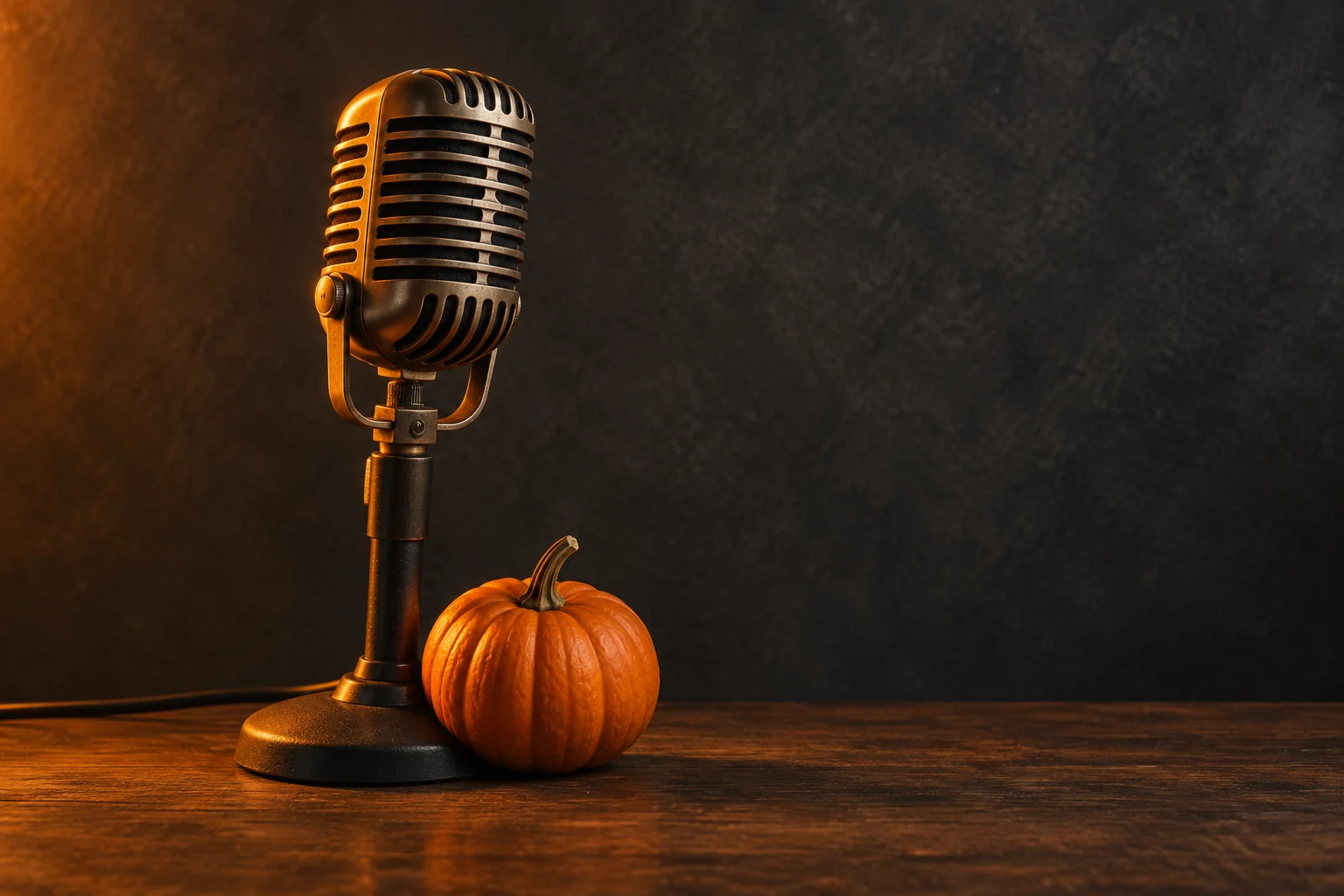
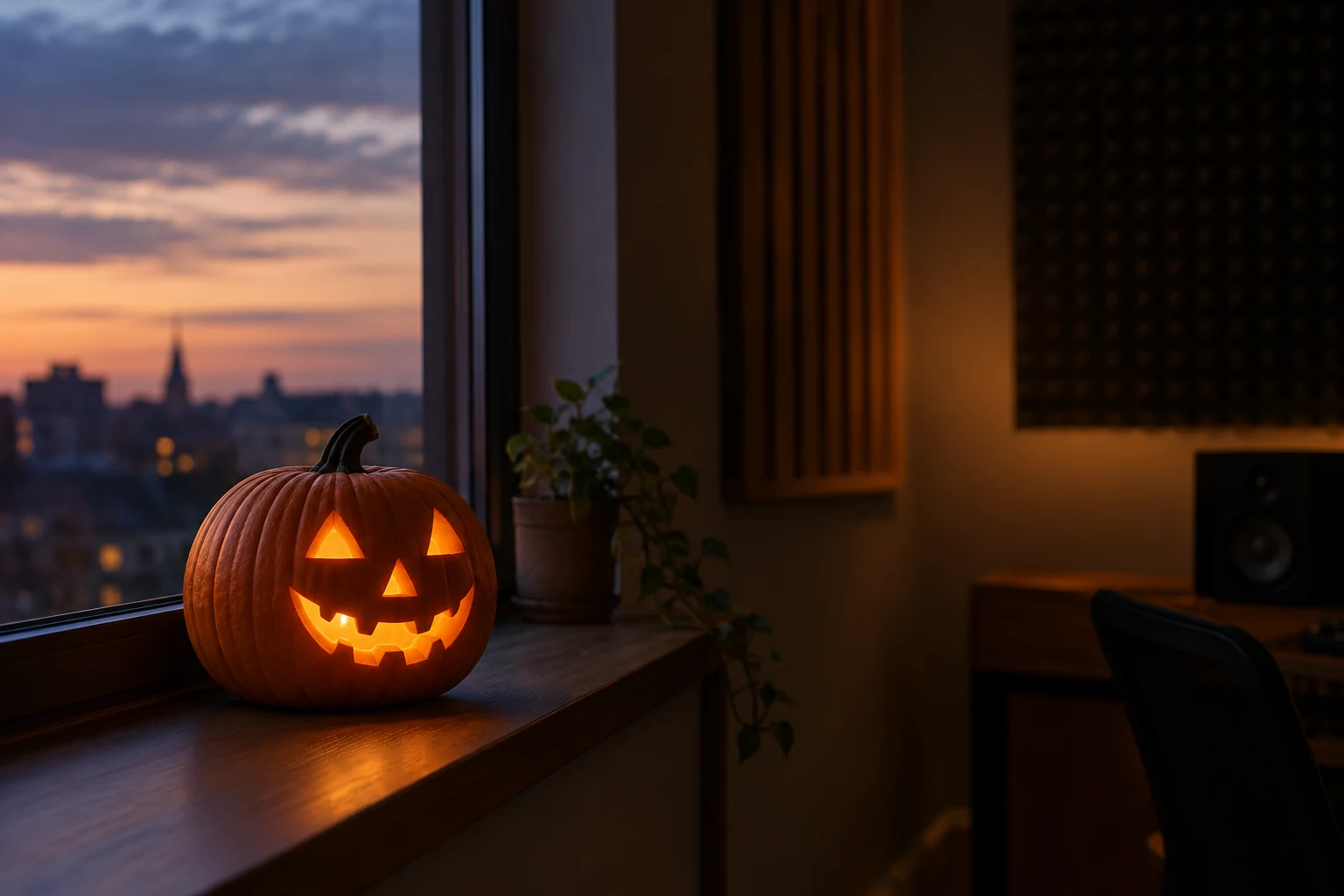
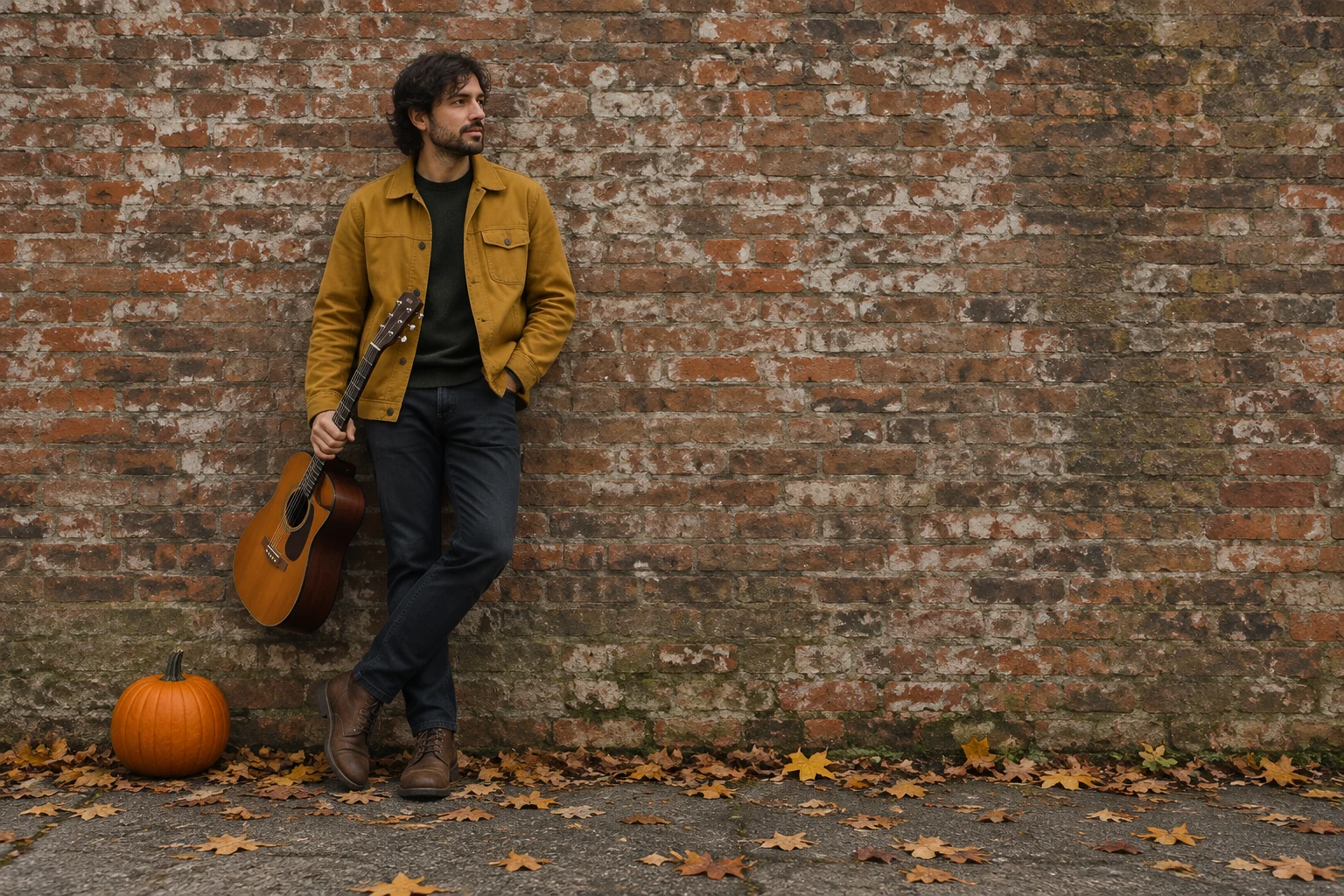
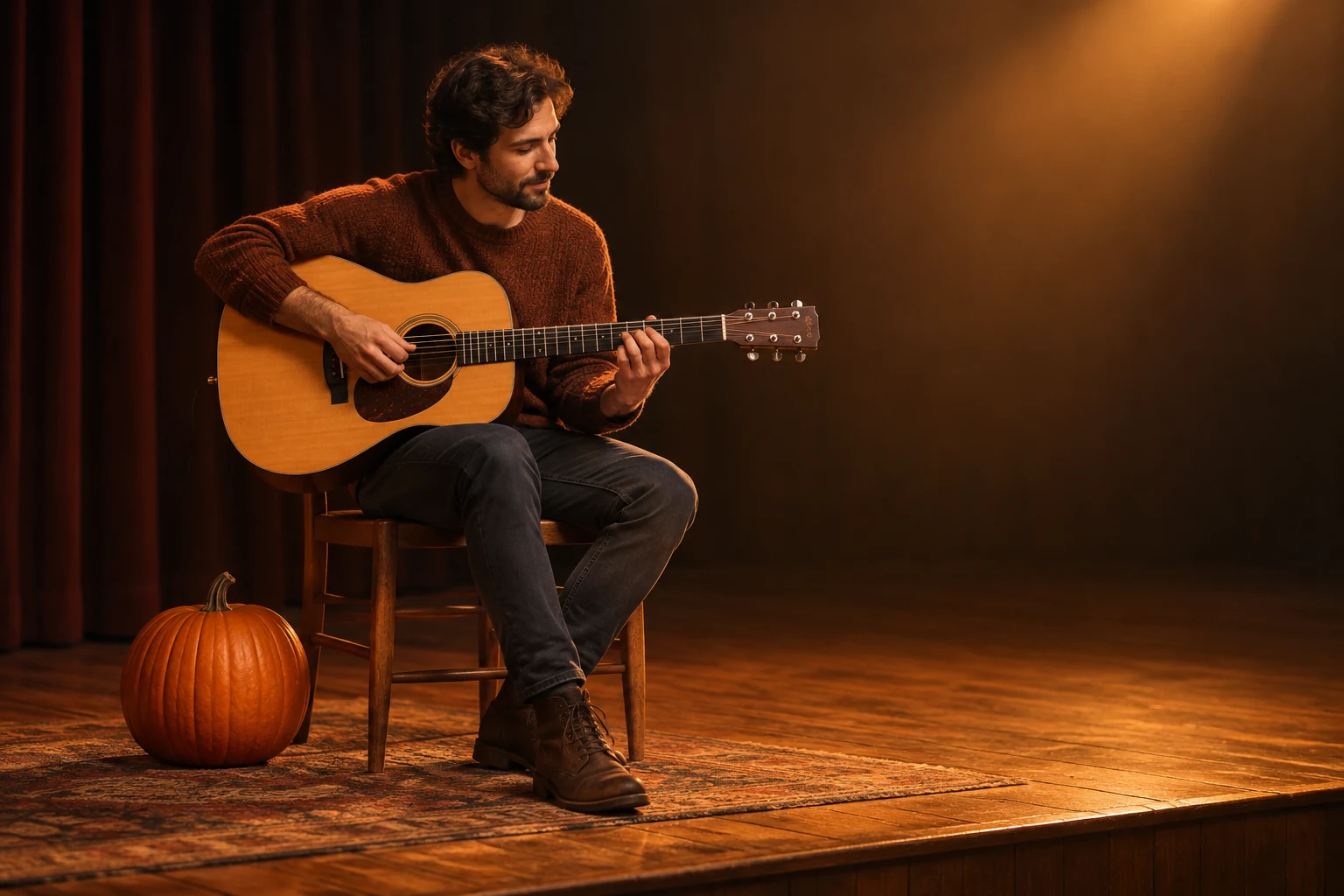
Plan your pumpkin composition
Edit an existing portrait
Upload one image in edit mode and describe where the pumpkin should appear in the original scene.
Create without an upload
Use text mode to build a new scene, such as an adult guitarist on a wooden rehearsal stage beside a pumpkin.
Shape the composition
Use specific prompt details to guide pumpkin placement, warm light, and framing. Results may vary from the source or prompt.
Review in History
Find generated images in History, then open a result to review and download it.
Add Pumpkin To Photo FAQ
Do I need to upload an image?
Only for edit mode, which requires one uploaded image. Text mode creates a new scene from your prompt without an upload.
What is the difference between generate and edit mode?
Text-based generation creates a new image from a prompt. Edit mode uses an uploaded image as the starting point and applies your editing prompt.
Will the edit preserve the musician, instrument, hands, and face exactly?
The prompt can ask the generator to preserve those details, but preservation is not guaranteed. Review the result to check how the image changed.
How much does it cost, and is there a free allowance?
Cost and any free access depend on the options and conditions available to you. Check the live credit quote before generating; this page does not promise a particular price or free allowance.
How long will generation take?
Wait times can vary. Check History for the result rather than relying on a guaranteed completion time.
Can I download the image?
Yes. Open the completed result in History and use the available download option.
Continue your project
musicwith.me · Updated
See update history
- — Added a pumpkin photo editor with editable prompts, four seasonal image ideas and a step-by-step guide.