
Make a Santa Caught On Camera Holiday Video
Create your Santa Caught On Camera
Watch a short motion study
History
Loading history…
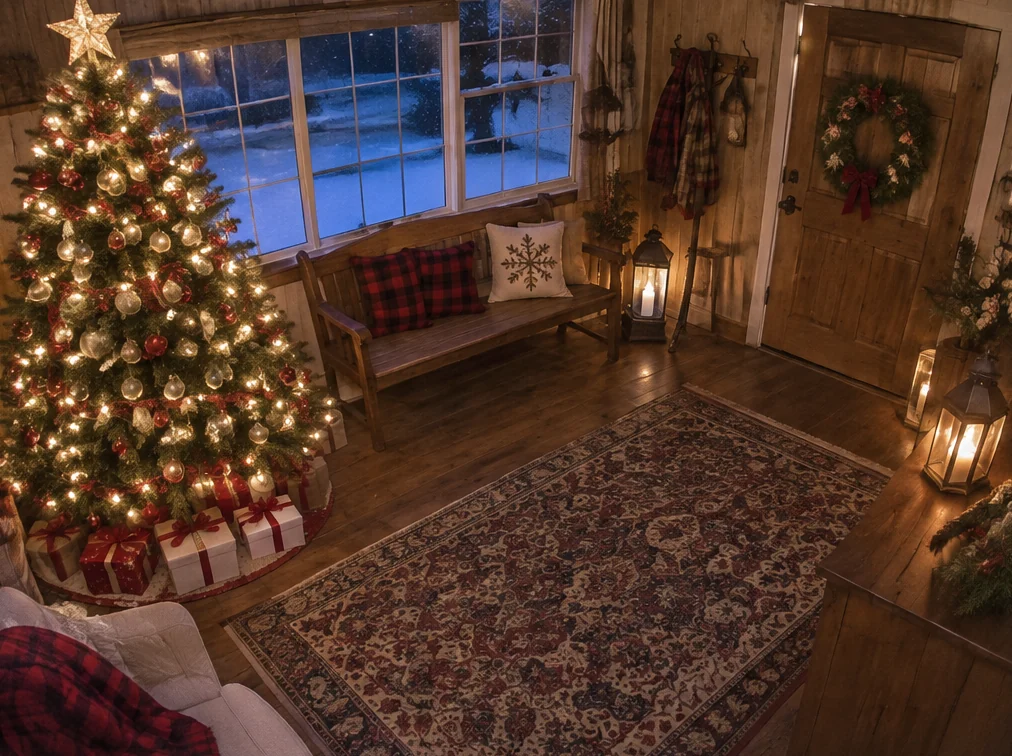
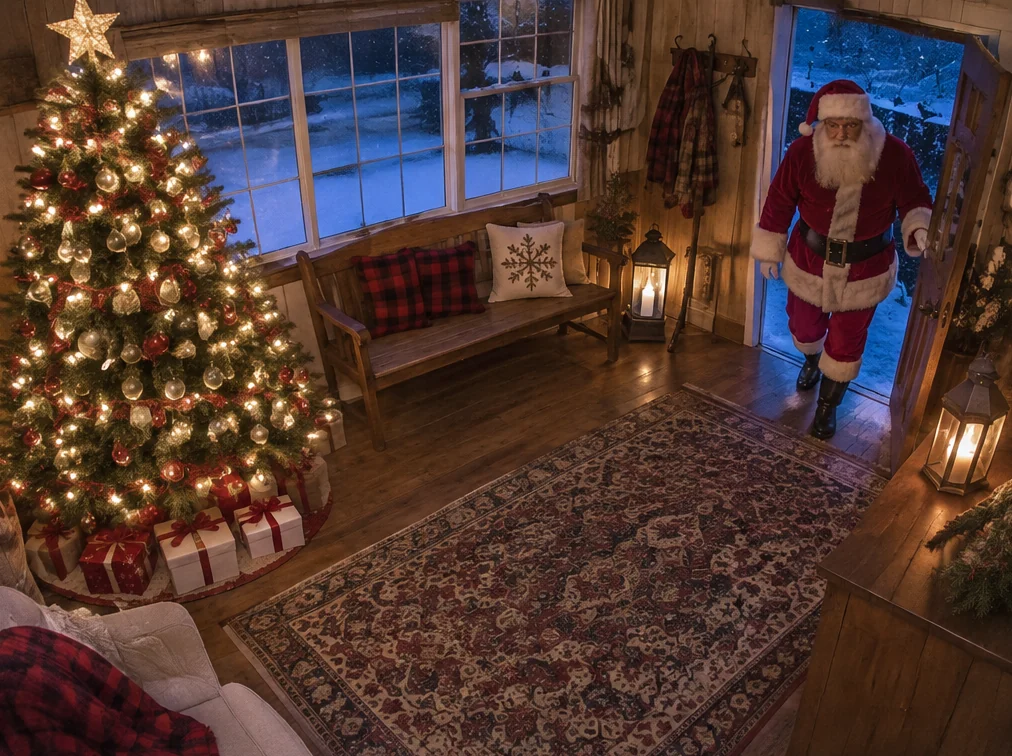
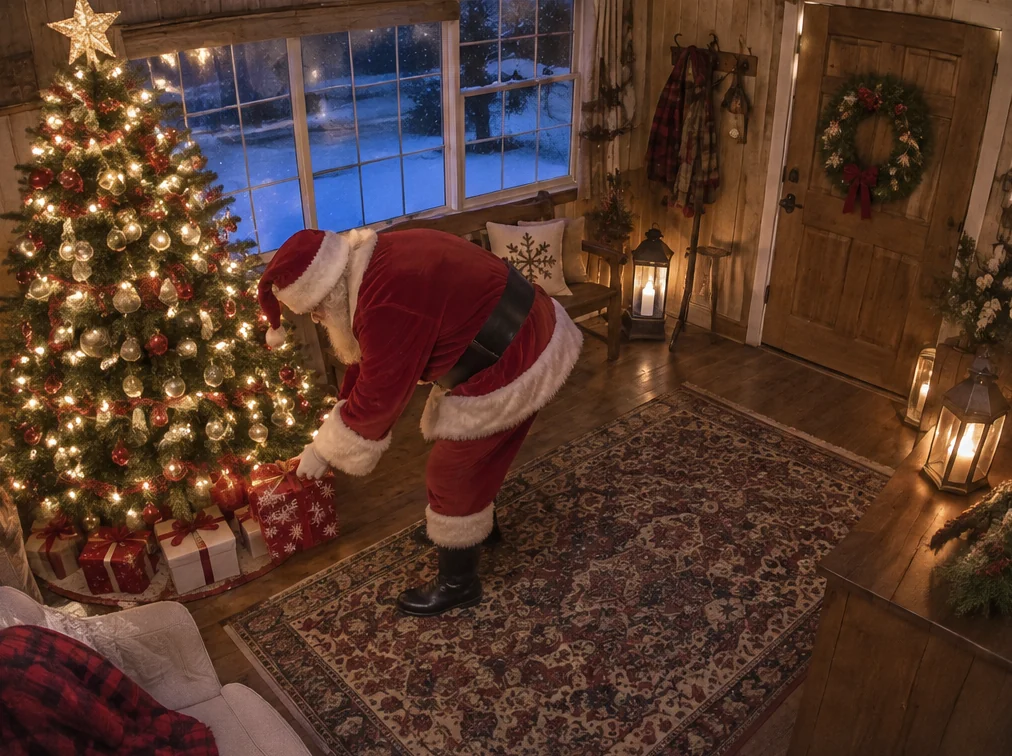
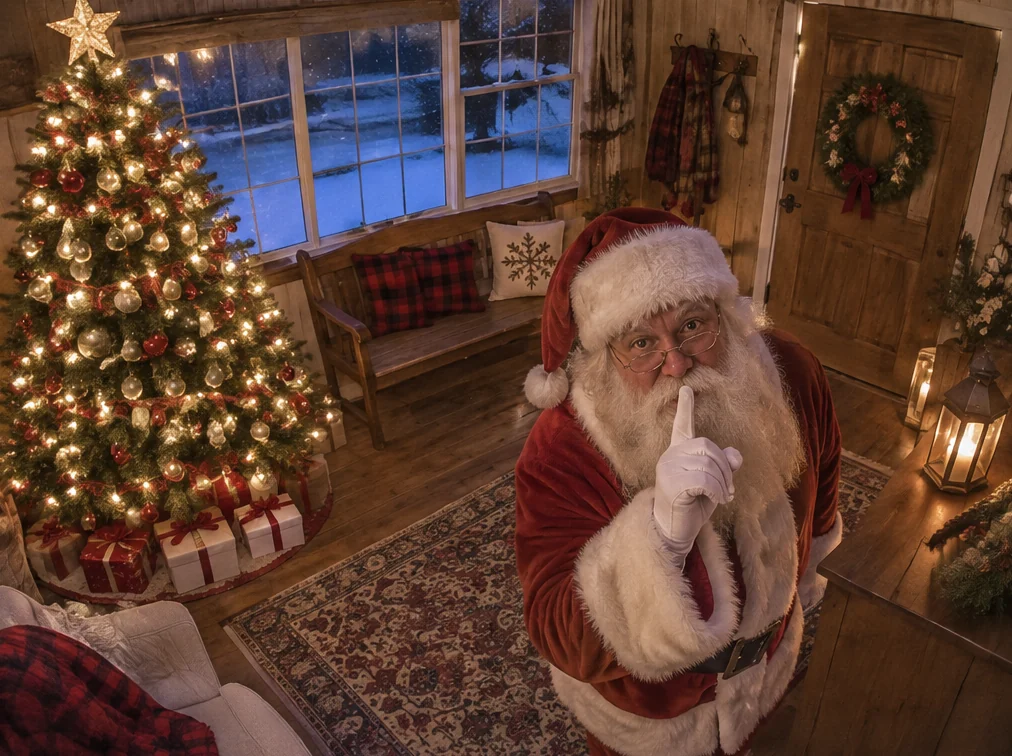
Santa Caught On Camera is a 15-second AI video concept in which Santa enters a room, leaves a present by the tree, and glances at the lens. Upload one photo of your living room or porch, review or edit the pre-filled effect prompt, then start the generator.
Make your Santa porch clip
- Choose one clear photo of your living room or porch. A view of the tree and the doorway gives the scene useful context.
- Upload the photo as @Image1. The generator requires exactly one photo.
- Review the pre-filled effect prompt and edit it if you want to adjust the scene direction.
- Check the live credit quote in the generator, then start the video and wait for processing; wait time varies with queue load.
From room photo to scene concept
Ideas for a Santa camera moment
- A note for the family Turn a familiar living room photo into a playful holiday reveal to share with family.
- A porch-side surprise Use a snowy porch photo with a wreath door and bench as the setting for Santa’s brief visit.
- A festive music-video scene Use the clip as a visual moment in a personal holiday video or a message made with Music With Me.
Check the clip before saving
- Make sure the fixed high-angle framing still shows the doorway, tree, and present clearly.
- Check Santa’s entrance, present placement, glance toward the lens, and exit for smooth movement.
- Confirm the room and key details still resemble your uploaded photo, with no unwanted timestamp or security-brand overlay.
Common questions
What is Santa Caught On Camera?
It is a 15-second AI video concept that uses your room or porch photo as the setting for Santa entering, leaving a present by the tree, glancing at the lens, and leaving.
Can I try it free?
Check the live credit quote shown in the generator before starting, and visit the pricing page for current plan details.
What do I need to upload or type?
Upload exactly one photo of your living room or porch. The effect prompt is pre-filled, so you can keep it as is or edit it before generating.
How long does it take?
The generator makes a clip of up to 15 seconds. Processing usually involves a short wait, but the time depends on queue load.
How can I make Santa’s visit feel natural?
Use a clear photo with the doorway and tree visible, then keep the prompt’s movements simple: enter, place the present, glance at the lens, and leave.
Explore more AI video ideas
musicwith.me · Updated
See update history
- — Added a guide to creating a 15-second Santa visit clip from one living room or porch photo.