
AI Halloween Dance Video Generator for a Playful Halloween Greeting
Create a Halloween Stage Greeting
History
Loading history…
The AI Halloween Dance Video Generator guide helps you plan a short seasonal stage greeting with one performer, two small side steps, a gentle shoulder sway and a friendly final wave. Choose Text to Video to describe a fictional adult without a photo, or Image to Video to animate one prepared adult costume photo while keeping the actual person and scene. Set your options in the live panel, review the credit quote beside Generate, then follow the job in History.
Storyboard preview
Give Compact Steps Room in the Frame
Create your Halloween dance video
Choose the right mode
Select Text to Video to create one fictional adult from an editable prompt; no photo is needed. Select Image to Video to animate one prepared adult costume photo. That mode preserves the uploaded person's actual identity, face, hair, clothes, body proportions and background. It does not swap in the example performer or provide an outfit-changing preset.
Describe one simple action
Use the prompt for two small side steps, a gentle shoulder sway and a friendly final wave. Keep one performer, a steady camera and one simple continuous shot. For Image to Video, keep movement modest and appropriate to the pose and space in the photo.
Set options in the live panel
The model is Seedance 2.5. Use its live panel to configure short duration, aspect ratio, resolution and audio options. There is no dedicated style selector: describe the costume, stage, lighting and movement in your editable prompt instead. Check the live credit quote beside Generate before starting.
Review the job and result
Follow the job's status in History. Review the result for the greeting's movement and composition; faces, hands and foot contact can vary. The original soundtrack is not bundled, and any chosen audio follows the settings you select.
Build a seasonal stage scene
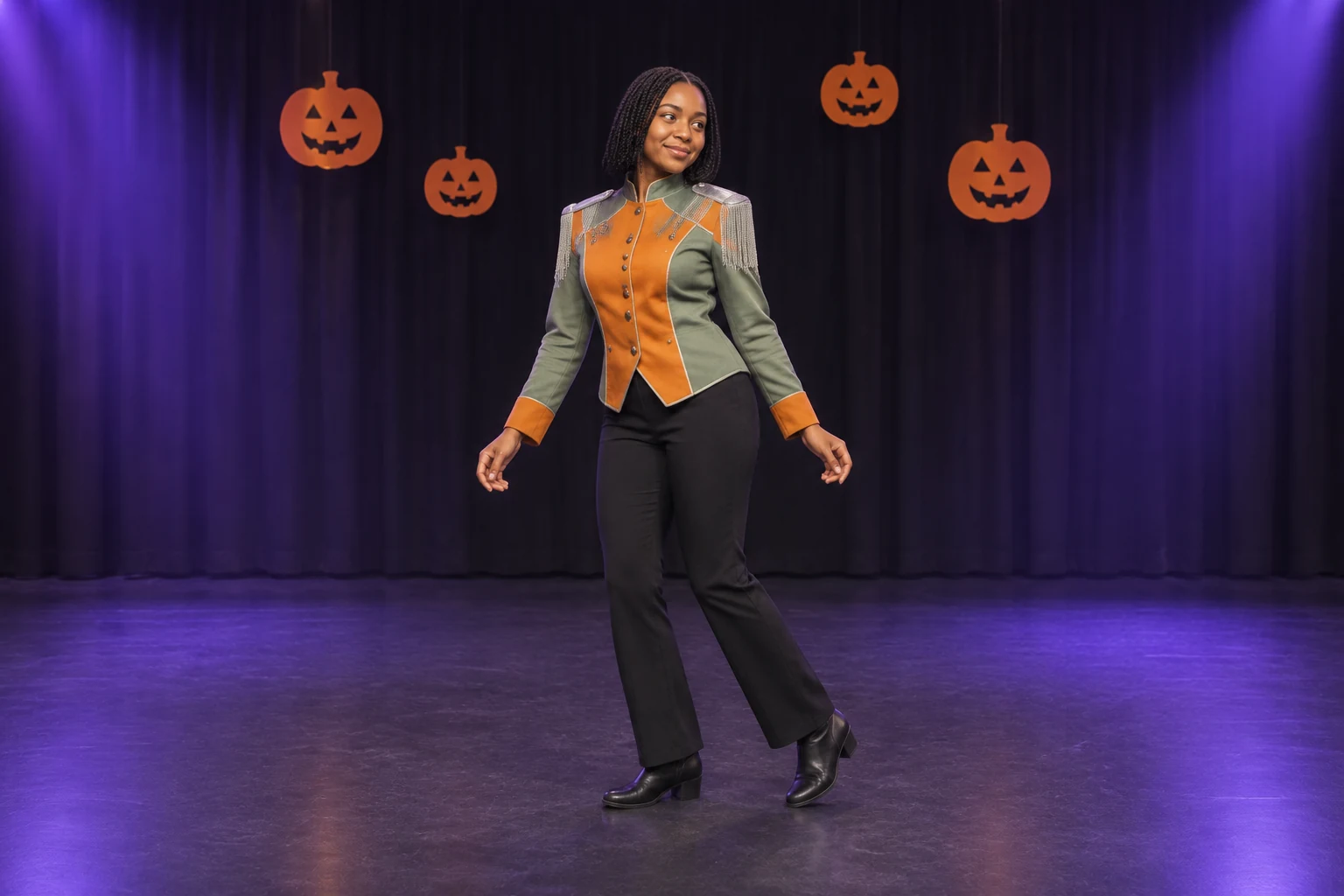
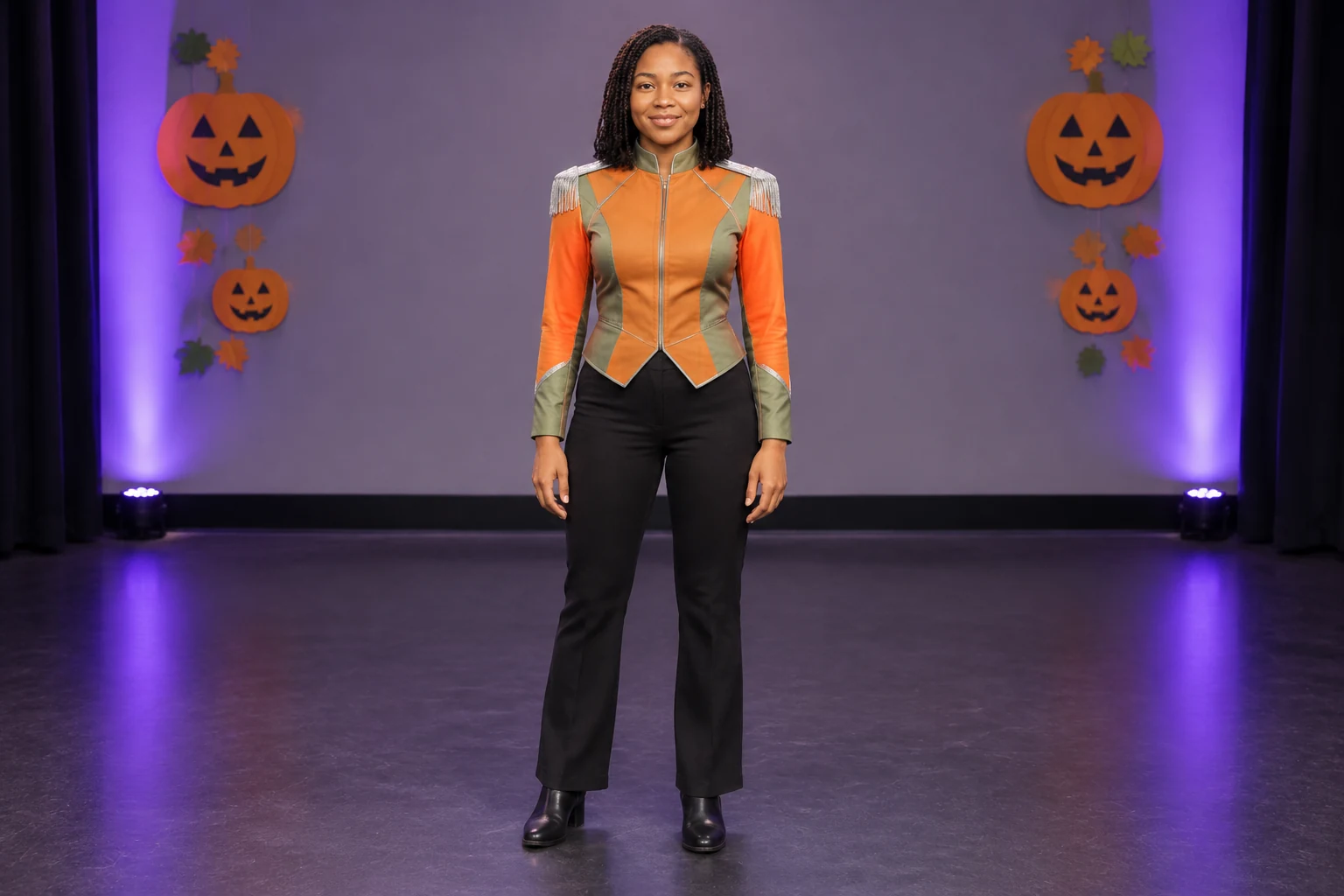
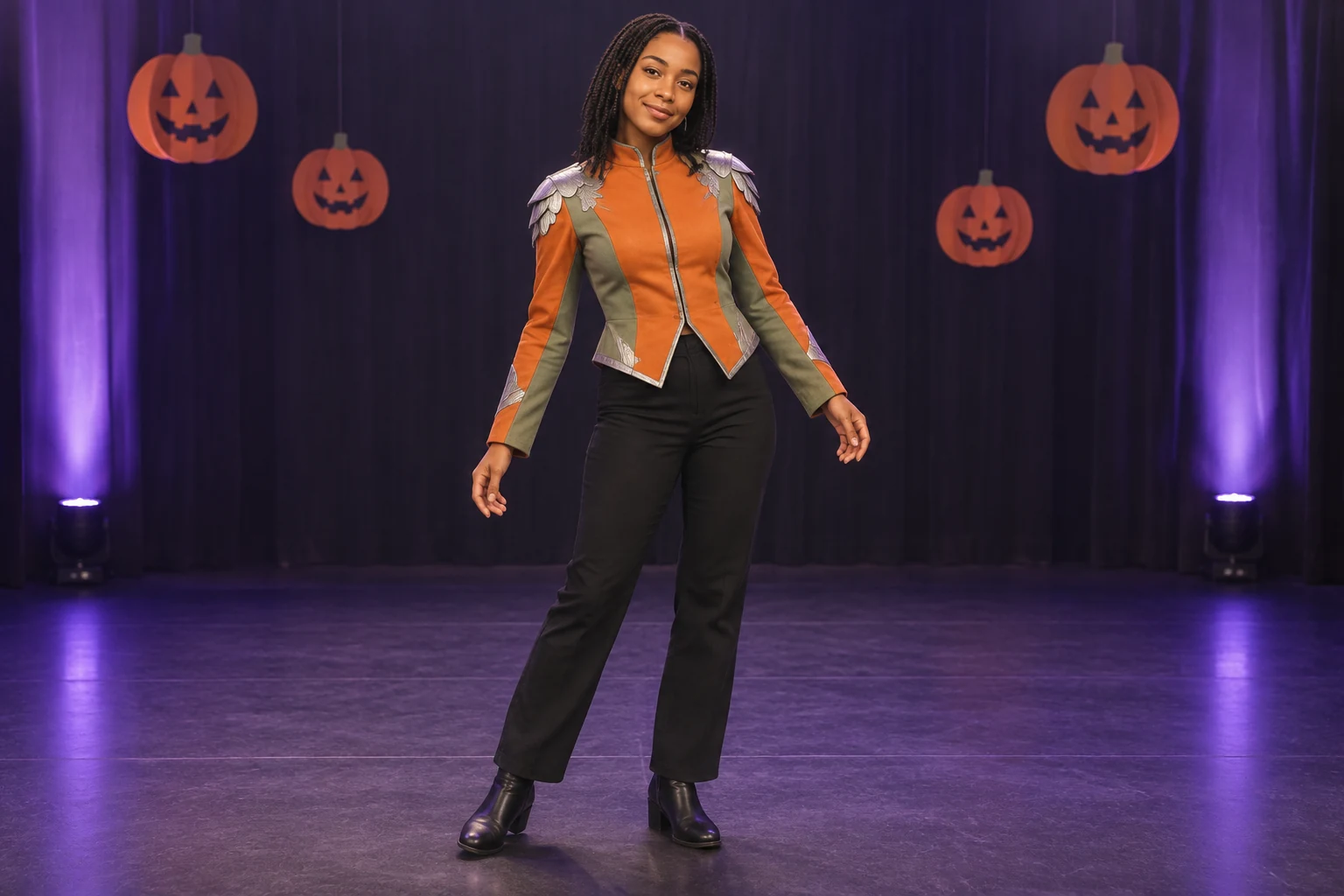
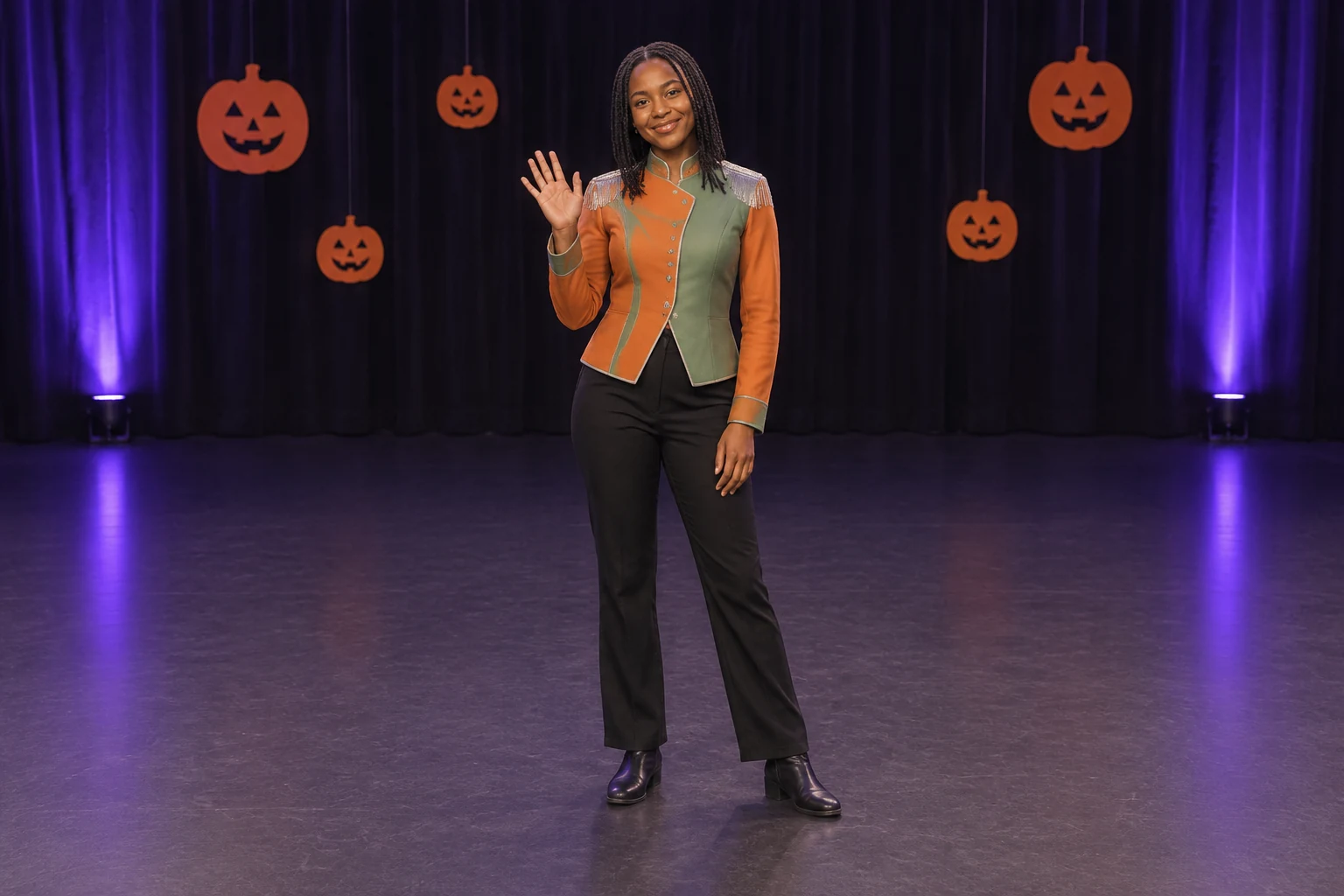
For a clear, coherent scene, keep the setting uncluttered: an empty small stage, soft violet side lights and paper pumpkin decorations in the background. In Text to Video, an original orange-and-sage stage jacket with silver shoulder details, black trousers and low black boots gives the fictional adult a distinctive seasonal look. Treat these details as a prompt example, not a preset. With Image to Video, describe only movement and treatment that preserve the actual uploaded person, outfit and background.
Use the photo workflow without changing the costume
Image to Video is for animating one prepared adult costume photograph, not for inventing a new outfit. Choose a neutral standing reference when possible, with the person and clothing clearly visible and room for modest movement. If you want a different outfit before animation, use a separate image tool first, then choose the resulting prepared photo for Image to Video. Do not expect the video mode to replace the uploaded person's appearance.
Read the storyboard as a plan
The nine-second silent three-frame storyboard preview is a planning slideshow, not a finished dance clip. Use it to check the intended sequence at a glance: opening pose, gentle movement and final wave. It can help you refine the prompt before creating a video, especially if you want the seasonal greeting to feel simple and easy to follow.
Keep the greeting focused
A short, single-performer sequence often reads more clearly than a list of complicated actions. Specify the side steps, shoulder sway and closing wave in order, then leave the camera steady and the shot continuous. If adding audio, choose it through the available settings; the original soundtrack is not bundled. Review the live credit quote before you start and use History to check status.
Halloween dance questions
Do I need a photo to make a Halloween dance video?
No. Text to Video creates one fictional adult from an editable prompt. Image to Video animates one prepared adult costume photo.
Will Image to Video change the person's costume?
No. It is intended to preserve the uploaded person's identity, appearance, clothes, body proportions and background. Prepare a different outfit separately if needed.
Can I choose a visual style from a selector?
There is no dedicated style selector. Describe the costume, setting, lighting and movement in the editable prompt.
Which model and settings are available?
The model is Seedance 2.5. Its live panel provides configurable short duration, aspect ratio, resolution and audio options.
Is a soundtrack included, and how do I check progress?
An original soundtrack is not bundled; chosen audio follows your settings. Check the live credit quote beside Generate and follow status in History.
What should I review in the result?
Check the movement and framing; faces, hands and foot contact can vary.
More ideas to explore
musicwith.me · Updated
See update history
- — This guide presents a new Halloween stage-greeting workflow for Text to Video and Image to Video, with a three-frame planning slideshow. Added a filmed movement or framing reference with its matching cover and practical observation notes.