
GPT Image 2.6 AI Image Generator
Create or refine a music-themed still image
History
Create an original music-themed still life from a written prompt, or upload one reference image and request a focused revision to its visible design. Use this GPT Image 2.6 AI Image Generator guide to prepare the subject, composition, lighting and materials, then inspect the finished still image. Choose GPT Image 2.6 Flare or Sunburst from the available models and check your account access and live Required Credits quote before generating.
Create and refine one clear image
Choose the right mode
Use Text to Image to build an original scene from an editable prompt; this mode uses zero uploads. Choose Image to Image when you have one actual reference image to revise, then add an editable prompt describing the change. This guide is for still images, not video or audio samples.
Describe the picture
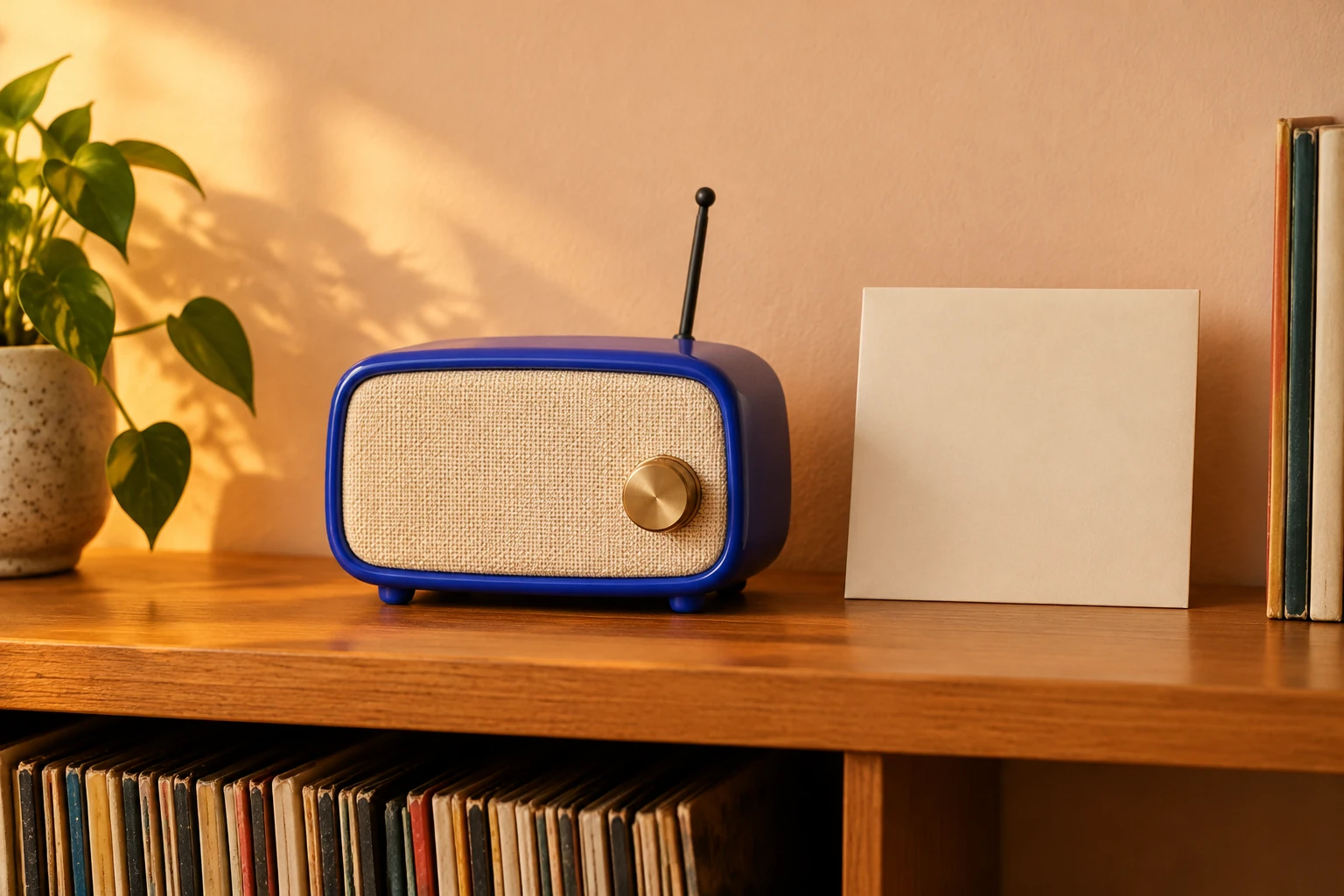
Name the subject and its visible features, then specify composition, setting, lighting and materials. For the original scene, describe the rounded cobalt-blue radio, cream fabric speaker, brass knob and simple antenna. Add the shelf, pale peach wall and amber sidelight, and say when you want the sleeve card blank and the scene free of logos.
Generate or request one change
Select GPT Image 2.6 Flare or GPT Image 2.6 Sunburst. In text mode, start from an empty upload area and describe the complete composition. In image mode, supply one real reference and request a narrow adjustment, such as a warmer light or a different surrounding wall. Check account access and the live Required Credits quote before Generate.
Review, then iterate
Inspect the result for the subject’s silhouette, clean edges, believable materials, unwanted lettering and details that should have remained unchanged. If something misses the brief, make the next prompt more specific rather than assuming exact fidelity. Check status and ready images in History.
Build the still life from text
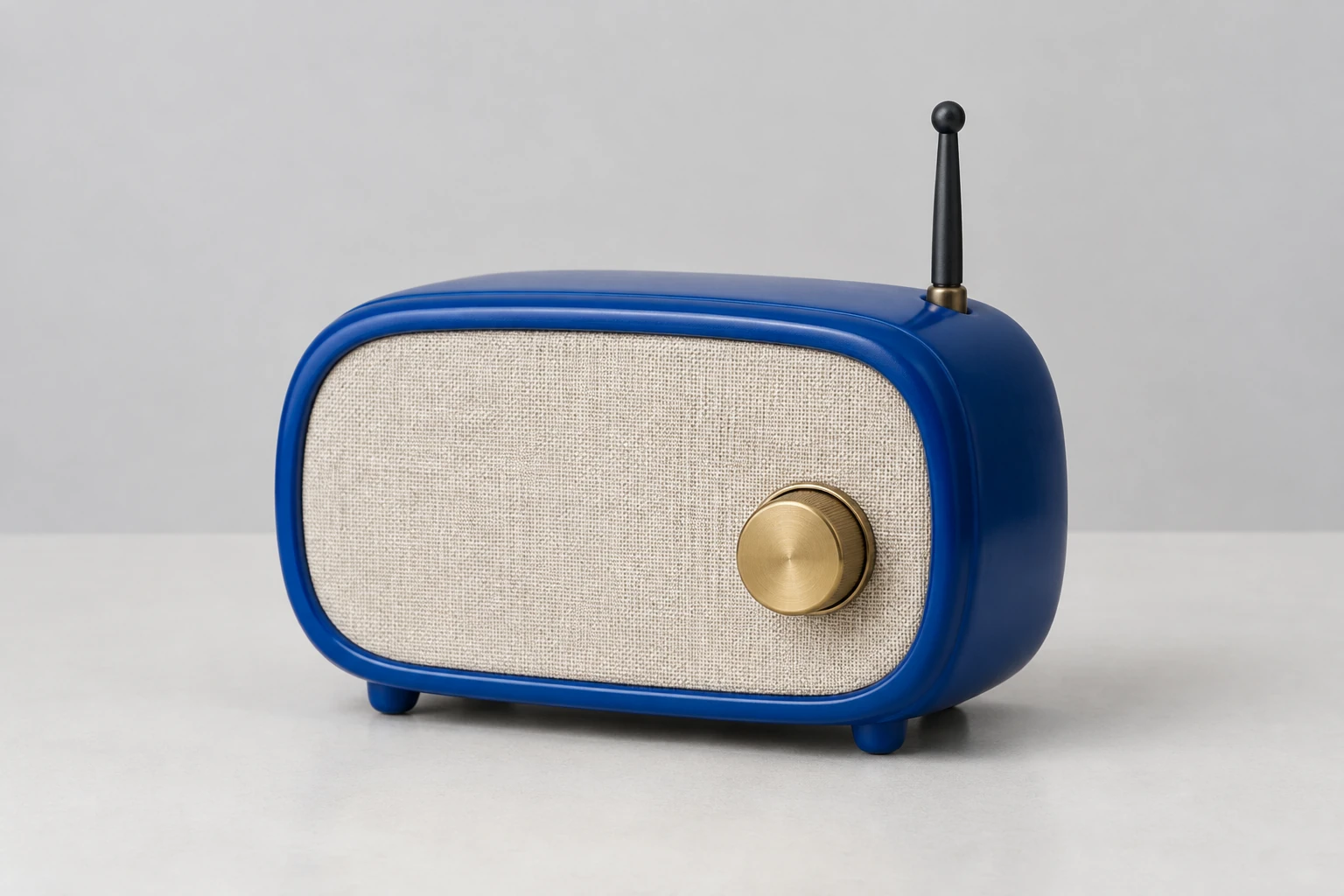
For a fresh composition, use the editable Text to Image prompt with zero uploads. A useful prompt makes the visual hierarchy clear: the radio is the focal object; the sleeve card is blank and secondary; the shelf and pale peach wall establish the rehearsal-room setting. Naming the cobalt-blue body, cream fabric, brass knob and dark antenna helps express the intended design. Add lighting and material cues, but avoid piling on props that compete with the subject. Use the prepared scene prompt as a starting point and adjust one visual priority after reviewing the image.
Revise one actual reference
Image to Image takes one reference image and an editable prompt. Use a photo of the specific object or character you want to keep, then describe one requested change. State which visible qualities must stay—such as silhouette, colors, distinctive details, pose or framing—and what may change, such as the light or background. A narrow request makes it easier to judge whether the revision followed your intention. The edit prompt is written for any supplied subject; it asks for a quiet sage-green background while preserving the existing light and support surface without replacing that subject with the radio example.
Choose a listed model and check the quote
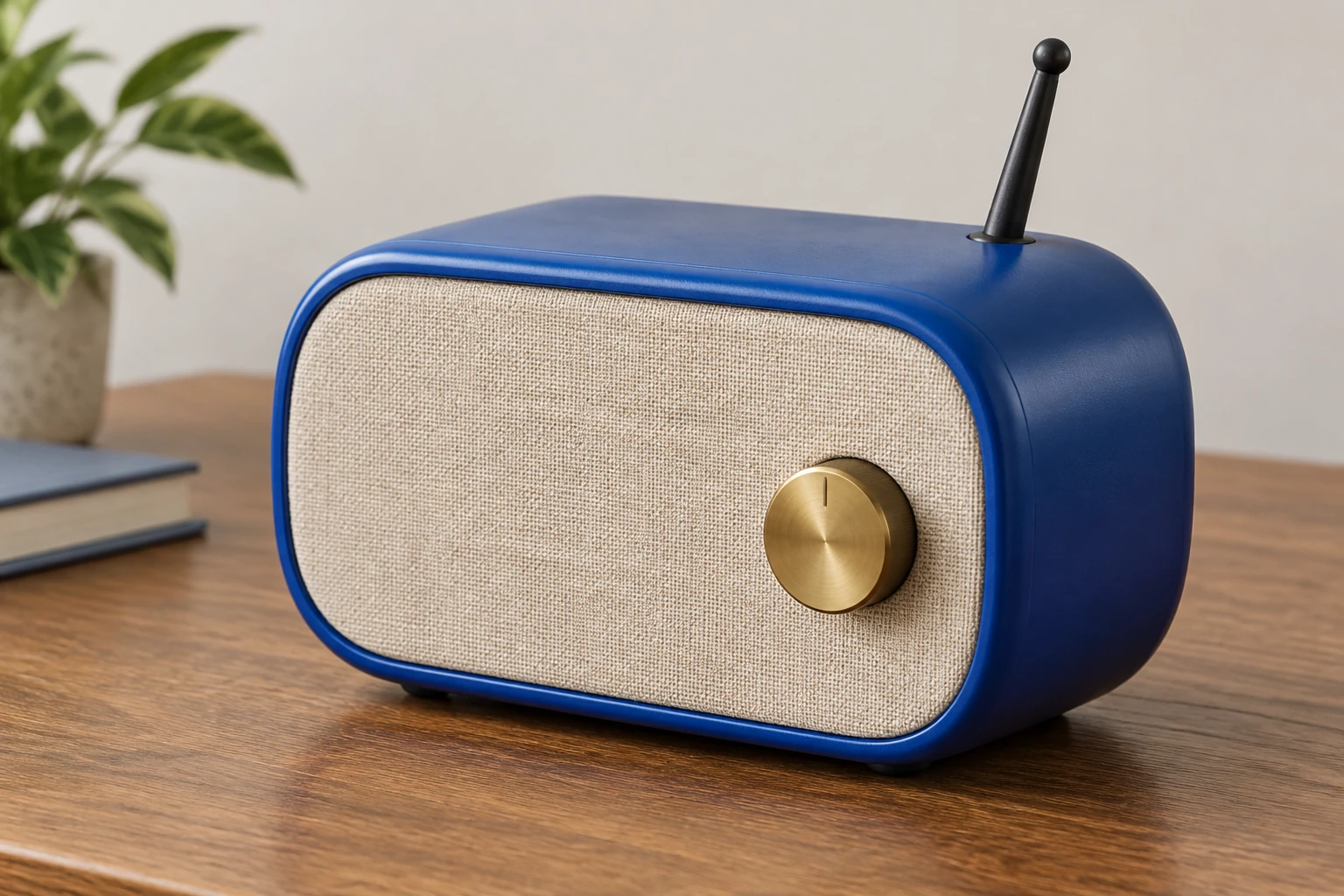
The guide focuses on GPT Image 2.6 Flare and GPT Image 2.6 Sunburst, which are available in the model selector. Both are already enabled for generating and editing here; this guide makes no unsupported claim that one is faster or produces better images. The model and size or aspect choices determine the live Required Credits shown for your configuration. Check your account access and that current quote before selecting Generate. These two models do not have free-eligible access, so do not assume a free allowance or trial.
Review the image as release artwork
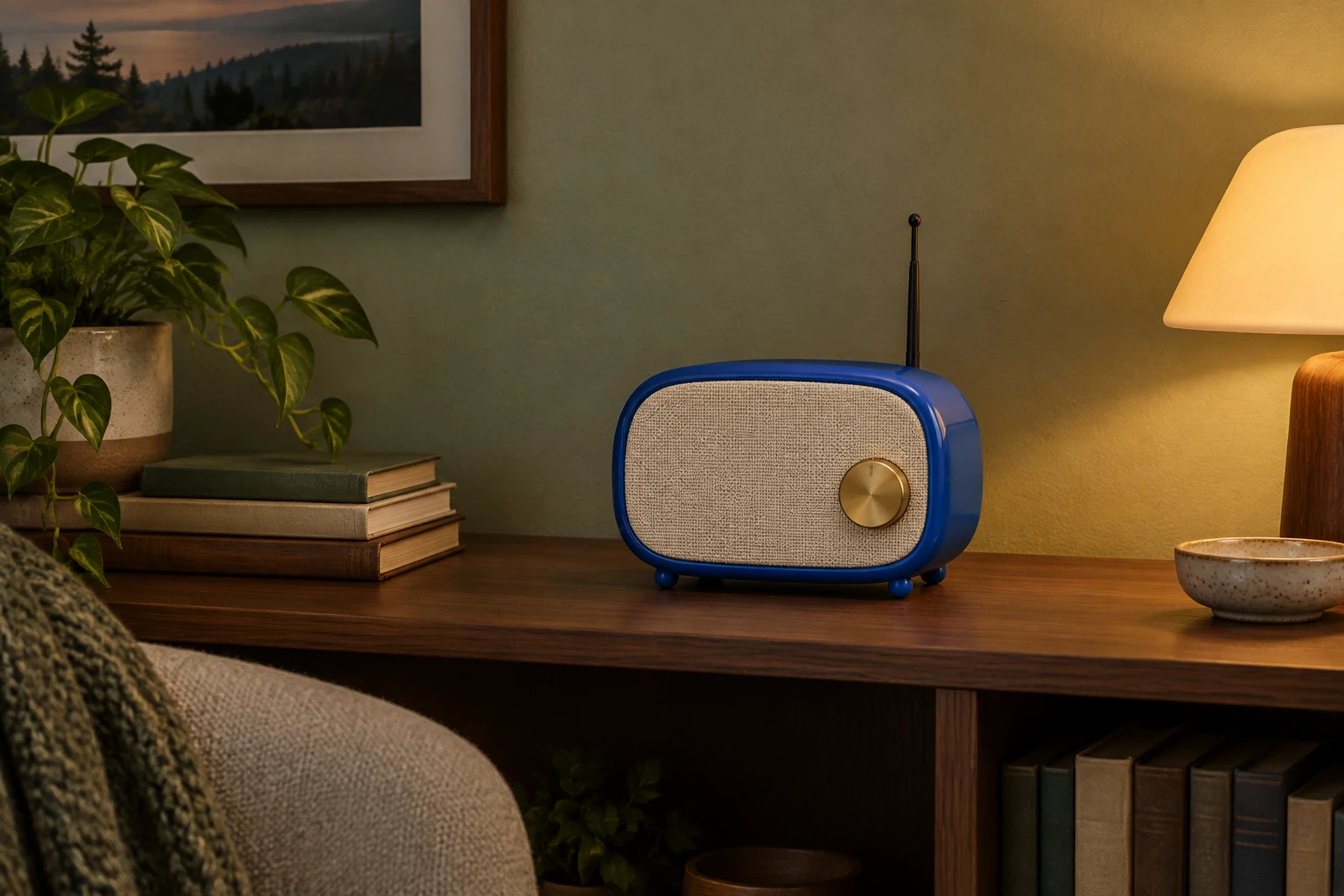
Treat the result as still-image artwork that you can assess visually. Check that the subject reads clearly at the intended size, the edges look intentional, and materials remain distinct: woven speaker cloth should not read as smooth plastic, for example. Look for accidental lettering on the sleeve card or radio, and compare preserved details against the reference when editing. If a detail has drifted, try a more focused revision and review again. Status and ready images are available in History.
GPT Image 2.6 questions
What does GPT Image 2.6 AI Image Generator do?
It supports still-image generation from a text prompt and still-image revision from one reference image plus an editable prompt. You can describe a music-themed still life or request a focused change to a supplied object or character photo. It is not an audio sample or video workflow.
Can I use the tool without a photo, or with more than one?
Text to Image uses an editable prompt with zero uploads. Image to Image uses one reference image and an editable prompt. This page’s supported reference workflow is one image, not multiple references.
Is GPT Image 2.6 free to use, and how do I check access?
The two models listed on this page, GPT Image 2.6 Flare and GPT Image 2.6 Sunburst, have no free-eligible access. Do not assume a free allowance or trial. Check your account access and the current Required Credits quote for your selected model and size or aspect before Generate; the quote is not a fixed price stated here.
How long does generation take, and where do I find the image?
No exact wait time is promised. Check the status and look for ready images in History.
What is the difference between GPT Image 2.6 Flare and Sunburst?
GPT Image 2.6 Flare and GPT Image 2.6 Sunburst are separate available choices for generation and editing. Choose the one you want to try, then compare results using the same prompt, reference and available settings. Check the live Required Credits quote for the selected configuration.
How should I revise a reference and check the finished result?
Upload one actual reference, state which visible identity, design, colors and details to preserve, and request one specific change such as warmer lighting or a quieter background. Review the result for silhouette, edges, materials, unwanted lettering and preserved details. If needed, make another focused revision; exact fidelity is not guaranteed.
More ideas to explore
Double-exposure effect guide
Explore a separate image treatment for a different visual direction.
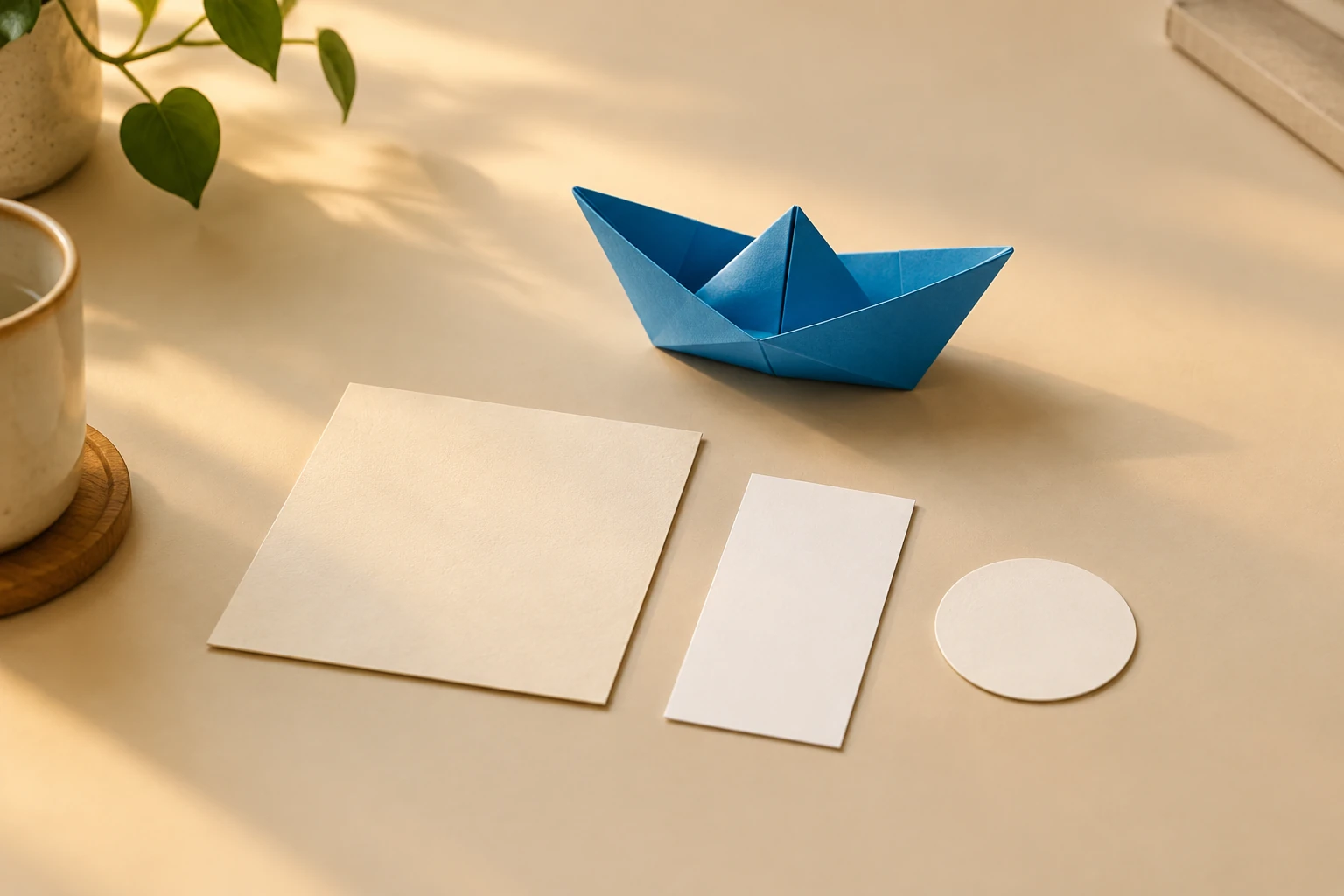
Compare image models for release artwork
Use the paper-boat release brief to compare version and format choices.
Pricing
Review account and pricing information, then check the live Required Credits quote in the generator before Generate.
musicwith.me · Updated
See update history
- — Added original blue-radio still-life and focused background-edit prompts, four visual studies, zero-upload and one-reference guidance, and live credit-quote checks.